Facility Service
The Facility Service stores all facility information. This service is linked to and synchronizes with other services that use facility information, including the Device Definition Service (DDS), the Point Service (PNT), and the Universal Interface Service (UIS). Each facility also contains metadata (or attributes) about the facility. Metadata is updated in the DDS about how and who can access the data, so that the UIS can appropriately handle requests. Metadata emulates a hierarchy or similar structure, so that a specific subset of data can be tailored for a particular need.
Facilities, along with Uniform Data Codes (UDCs), are critical elements of CygNet. They define the relationship between tags and hardware I/O; they ease the sorting and filtering of data, and allow many facets of the system to be templated, including HMI screens, graphing, and reports.
The Facility Service has a one-to-many relationship with other services. This means that a single FAC can hold facilities for any number of other services.
Facilities (FAC) Editor
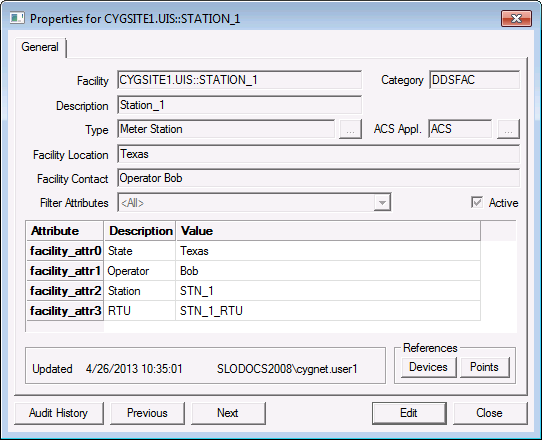
View or edit facility configuration information in the Facilities (FAC) Editor, via the Properties for <Facility> dialog box.
- Right-click in the service pane and select New to configure a new facility.
- Right-click a facility name and select Properties (or double-click) to access the Facility editor and view its existing facility record. By default the FAC Editor opens in View (or read-only) mode. Use the Previous and Next buttons to scroll through the configured facilities in the FAC in View mode.
- In the FAC editor, click Edit to modify a facility record. The property fields become editable, and the Previous and Next buttons are disabled in Edit mode.
- If changes are made to a point and the FAC Editor is canceled, a prompt dialog will appear allowing you to Save, Discard, or Cancel and return to the editor.
- Click Audit History to view an audit history trail for the FAC record. See Auditing for more information about how auditing works in CygNet Software.
|
| FAC Editor showing Facility Properties |
References
From the Facilities editor (Properties for <facility> dialog box) for any facility in your system, you can view all devices and points that reference the selected facility.
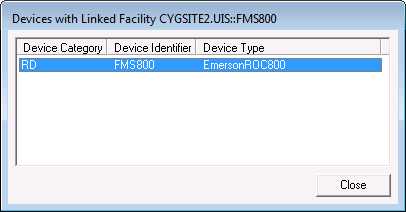
- In the References section, click Devices to view the Devices with Linked Facility dialog box, which lists all devices that reference the selected facility.
|
Devices with Linked Facility |
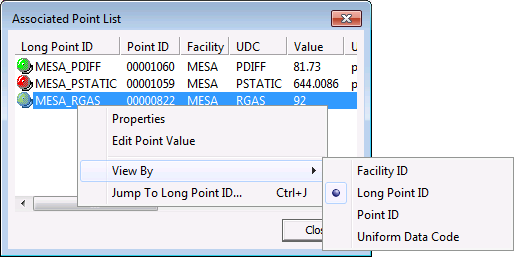
- In the References section, click Points to view the Associated Point List dialog box, which lists all points in the system that are associated with the selected facility. Right-click in this dialog box to access options to view point properties, edit point values, and sort the list by desired property (Facility ID, Long Point ID, Point ID, or Uniform Data Code).
|
Associated Point List |
Scripting the FAC Editor
See CxEditors CxFacEditor Object for more information.
Context Menu Options
The following table lists and describes the context menu options that display when you right-click in the FAC service pane.
| Option | Description | Shortcut |
|---|---|---|
|
New |
Click this option to create a new facility. |
|
|
Delete |
Highlight an existing record and click this option to permanently delete a facility record. |
|
|
Properties |
Highlight an existing record and click this option to view its properties in read mode. You can also just double-click an existing record. |
|
|
Select Search |
||
|
Jump To |
Ctrl+J |
|
|
Hide Database Key |
Click to Hide/Display the column in the service pane containing Data key values for each record. |
|
|
Configure Attributes |
Enables you to configure facility attributes. See Facility Attributes for more information. |
More:
 FAC Configuration File Keywords


